Category Archives: Technology in Education

iPad iBook iRead

I began my day by reading @dougpete‘s blog post about David Warlick‘s new book, A Gardener’s Approach to Learning. Based on Doug’s comments about the book, I thought I would enjoy reading it too. The book is available in a print version as well as a downloadable pdf file. Immediately, I started to think about reading the publication on my iPad, so the buy online and read now process was appealing.

This was an easy decision – get the book now, enjoy reading it and take advantage of the opportunity to read on my iPad and learn something new today. I visited Lulu’s online publishing site, updated my credit card credentials, made my purchase and downloaded the file. Next, I used Calibre ebook management software to convert the downloaded file to the epub format. After attaching my iPad to my laptop I chose the ‘send to device’ option in the Calibre software to send the file to the iBooks app on my iPad and presto – my new book is ready to read on the go.

I look forward to reading David’s new book, perhaps sitting on the back porch later today.

Related Resources:

The Gardener’s Approach to Learning wiki
Sharing with David Warlick

~ Mark

iPod Project: Sound Track of my Life

I was speaking with @kimsten earlier this month about her year with our 1:1 iPod (Touch) in the classroom project. I was really impressed with the ‘Sound Track of my Life’ project that she planned for her students and wanted to share an overview.

Project Overview: Students were asked to identity 8 important events or experiences in their life. Next, the students were required to find songs that suitably represented each of the identified events. Students then authored a written description explaining the connections between the events and songs. Students also produced artwork for their project. Sample artwork included a CD cover design and a concert flyer for the event sequence. The project culminated with a presentation to the class of one selected event and the artwork.

iPod Integration: The iPods were used for song and lyric research via the wifi connection in the classroom. Students also had options to use the iPods for project details using the Notes app and creating the artwork. Apps that could be used to create artwork were listed in an earlier blog post.

Teacher Perspective: The project integrated research and writing skills, creativity through the artwork creation and presentation abilities. The iPod was used in a natural integrated manner as part of the learning process. This project also created a learning situation allowed the teacher to learn a lot about each student in a very individual way.

Student Perspective: My daughter, Charlotte, has had the good fortune of being in @kimsten’s classroom the past 2 years. Wearing my ‘parent hat’, I was quite interested to see the level of student engagement with this project outside of the traditional school day. She also felt the learning situation was designed to allow personal choices within the learning process. On the iPod side of things, search engines such as Google and Bing worked well on the device. Charlotte  indicated many students used the iTunes,  Tune Wiki and Lyric Wiki in their research.

Hat’s off to @kimsten for designing this effective integrated project. Based on her success, you might like to try this in your classroom.

Related Resource:

The WRDSB iPod project wiki. Thanks @susan_watt.

~ Mark

Paradigm Shift???

An interesting ‘event’ happened to me earlier this week. I was mulitasking on a number of projects in my office and had taken a short break to discuss a couple of ideas with staff. On returning to my office, I sat down and ‘it happened’ – I started using my laptop but absolutely nothing happened – weird for sure.

Then is struck me – nothing happened because I was touching the screen on a non touch screen device – yikes! I gave my head a shake, reverted to ‘laptop mode’ and carried on with my work after sharing this incident with staff.

Was this a defining moment in my technology use? Have a used my iTouch, iPhone and iPad enough that a touch screen now seems normal? It would almost seem that way. I must admit, this event really caused me to stop and reflect.

For now, like many, I will continue to bop back and forth between touch screen and regular screen devices. Currently I am spending more and more time with mobile technology – a mix of these 2 worlds. I am writing this post with my new Lenovo x100e and plan to write my next blog post with my iPad.

~ Mark

Round Table Reflections

Last week, I had the honour of attending a round table discussion on the topic of 21st Century Teaching and Learning in a Digital World, along with approximately 30 others,  as arranged by the Ministry of Education. I wanted to share a personal reflection on the day.

Setting the stage: After a brief welcome and overview of the day, participants were invited to briefly introduce themselves and share a significant insight or practice they have on the topic of 21st Century Teaching and Learning in a Digital World.

When my turn came, I spoke to the following points regarding insights and/or best practices:

1.    Technology use must be embedded into the learning process and aligned with high yield teaching strategies  (examples: graphic organizers, anchor charts, open ended critical questions, non fiction writing, exemplars)

2.   Link digital citizenship to the character development programs, and distinguish between appropriate use tools and poor choices of behaviour

3.    Embrace the strengths of social media tools  to support student learning where appropriate

4.   The importance of having a student voice in the planning process

5.    Enable and empower learners and the teaching process

6.    Invest in infrastructure, and support use of using personally owned mobile devices

7.    Expectations regarding the effective use of technology needs to be set at the provincial level, reflected in strategic plans. School success plans  should also specify appropriate use of technology to support learning.

Alignment: The next part of the discussion required us to look at how 21st Century Teaching and Learning in a Digital World related to the three key goals: improving student achievement, closing the gap and increasing public confidence of education.

Throughout the discussion, I thought a number of good points were made by the group including:

a) We need progressive and aggressive change at the systemic level to alter the culture and address the gap in effective technology use

b) Building capacity in school administrators

c) Teacher training needs to change, and include the strategy of gradual release of responsibility

d) Model effective use of technology, and make use of mentors

e) Assessment practices are inherently paper based

Recap: At the end of our session, 8 emerging themes were identified as follows:

1. infrastructure

2. access, equity and use of personal devices

3. privacy, rules of use, digital citizenship

4. teacher practice and preparation

5. development of, and use of digital content

6. effective sharing of resources

7. change assessment practices

8. continued focus on the business of learning – continued improvement

Next Steps: The notes of the day will be formally documented, and a plan will be determined to share the findings and announce next steps.  I found this to be a great experience. I would be delighted to have continued involvement in this planning process should the opportunity come about.

~ Mark


The Virtual Festival

I recently had an invitation to visit the music classroom of @tgianno to assist them with the preparation for a music competition.  The string ensemble was very successful at the local music festival competition, scoring excellent results which entitled them to compete at the next level of the music festival.

In today’s terms, participating in the second level of the competition means preparing a recording of two contrasting pieces under supervision of a festival officer. My role in the process was to be the recording engineer. The recording was completed on a laptop running Sonar Software and equipped with a Pocket VX digital interface which connects to a mixer, in this case with 2 Shure microphones.

After a warm up session and the traditional round of tuning, we recorded each selection twice. Following the session, we listened to the recordings as a group. The students collectively decided which recordings were the best, and should therefore be submitted to the festival evaluators. The selected files were burned to a CD and mailed to the festival office in the a date stamped envelope. I used Audacity, a free audio recorder/editor for Windows and OSX computers to convert the files to mp3 format.

Enjoy listening to the student recordings:  March and Tango


Picture Gallery


I appreciated the opportunity to participate in @tgianno’s music project.

~ Mark

Creating Art with the iPod

My daughter really enjoys creating works of art. She has a wide range of interests ranging from painting to paper mache to origami to crafts of all types. She has been having a lot of fun checking out draw programs for the iPod Touch. Some favorite art apps are:

iBurn – draws with flames, has options for mirroring to create symmetric shapes

Doodle Buddy – drawing program, has a good smudging feature

Glow Coloring – drawing program with florescent colors, has a stamping feature

TrippingFest Lite – allows drawing by pattern – great for symmetry, example patterns include polar, random shapes

Meritum Paint – simple drawing paint, lines are feathered like spilt paint, can draw with 2 fingers at once

Spawn Lite – random bouncing lines that explode in fireworks shapes

Dash Of Color – loads an existing picture to a black & white version, you can add colour highlights

SketchMee Lite – takes an existing picture and coverts it to a version based on chalk or pencil lines, then you add a new color scheme

PaintMee Lite – similar to SketchMee, but uses ‘paint’ rather than lines

Adobe Photoshop – photo editing on the go

Sample Art Gallery:  Pictures are names to reflect the app used to create them

iBurn

Doodle Buddy

Glow Coloring

Tripping Fest Lite

Meritum Paint

Spawn Lite

Dash of Color

Sketch Mee

Paint Mee

Digital Citizenship Symposium

Tuesday March 30th, 2010 was a special day – the day our Board held their first Character Development/Digital Citizenship Symposium. The ballroom at St. George’s Hall was buzzing with energy. The room was filled with administrators, teachers and students. We were about to share a day focused on Digital Citizenship in the context of Character Development and ultimately moving the agenda forward.

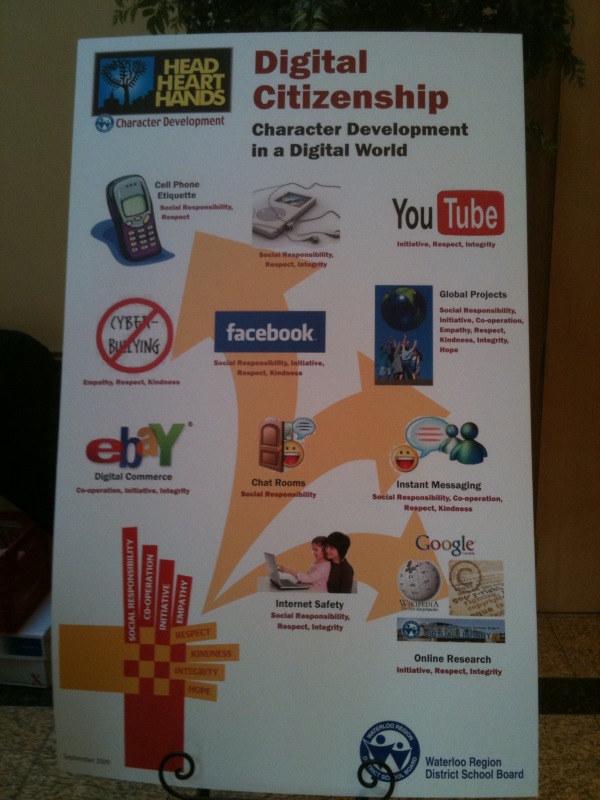
Showcasing our Digital Citizenship poster, in the case a giant one by the registration desk.

The Character Development – Digital Citizenship Program

8:00-8:30 Registration

8:30-8:45 Welcome

8:45 -10:00 Keynote Speaker  – Jesse Brown

10:00 – 10:15 Break

10:15 – 11:00 Morning: Session A – 21st Century Tools of Learning

  • Option 1 Social Media – Networking Tools
  • Option 2 Equity of Access – Adaptive Technologies
  • Option 3 Digital Literacy and e-learning
  • Option 4 Tools for Student Engagement
  • Option 5 Multimedia Projects – Original Work

11:00 – 11:15 Break

11:15 – 12:00 Morning: Session B – Classroom Applications

  • Option 1 Digital Citizenship in the Classroom
  • Option 2 Bitstrips – Literacy
  • Option 3 Creating a Collaborative Online Community
  • Option 4 Digital Citizenship in the Classroom -Ministry Project
  • Option 5 Building Community – Blogging

12:00 – 1:00 Lunch

1:00 – 1:45  Session C ” Your Digital Footprint “ – Panel Discussion

1:45 – 2:00 Break

2:00 – 2:45 Afternoon : Session D ” Where do we go from here?”

  • Positive Impact of Technology – The New A.U.P.

2:45 -3:00 Day Program – Closing

Evening Session for Parents and Community members

6:45 – 7:00 Welcome

7:00 – 8:00 Keynote – Jesse Brown

Jesse Brown, owner of Bitstrips for Schools, recently licensed for use in Ontario schools and host of TVO podcast “Search Engine” kicked off the day with a keynote presentation that tackled three questions:

  • Do cell phones belong in classrooms?
  • Do teachers belong on Facebook?
  • Does the internet make us stupid?

After exploring the ins and outs of these questions, the day moved to the break out sessions. I attended Steve Rensink’s session on using Web 2.0 tools in the classroom and Susan Watt’s session on Digital Citizenship in the Classroom. Both sessions were well done and provided opportunities for all to extend their learning.

The afternoon’s activities started with a panel discussion, which I had the privilege of hosting. The panelists included two secondary school students, a teacher, an administrator and a business representative from Opentext.  The discussion started by allowing each panelist to present their views about how integrity, respect and social responsibility (3 of our 8 key character attributes) relate to Digital Citizenship. Picking up on key points made early in the discussion, I also explored two additional points with the panel:

  • Explain the important differences when interacting in a face to face situation vs. an online environment, and
  • With the ease of copying, sharing and distributing content, give your views on academic honesty.

The final session of the day was prepared by Harry Niezen, Ron Millar and Anita Brooks-Kirkland, our ICT consultants. Seating arrangements for this session grouped students with students, teachers with teachers and administrators with administrators to explore a series of questions focusing on the future of our Acceptable Use Policy (AUP). Each table had a recorder so that the ideas and view points expressed could be captured, reviewed and considered in the rewrite of our AUP which will begin as a followup to this event.

All in all this was a successful event. The day closed with Susan Watt relating some classroom experiences from her point of view as our Technology Support Teacher and me announcing the launch of our new student email system and additional access to social media tools (including Facebook as of September) and our intent to embed their use in curriculum delivery. I think the highlight of the day for me was seeing all attendees – students, staff and administrators seated side by side and learning together. I feel fortunate to have been a part of this important WRDSB event. Congratulations to the event organizing team!!!

Additional Resources

Did you know? (4.0)

Twapperkeeper

The day as captured on Twitter

Social Media policy framework reference

Event Wiki

~ Mark

Adobe Connect Pro Mobile – first impressions

This week I had an opportunity to ‘kick the tires’ on the Adobe Connect Pro Mobile client. I downloaded the free client to my iPod Touch and iPhone.

Session 1

I started a host session on our Board’s server via my laptop. Next, I logged into the session with my iPhone over the 3G network and via wifi with my iPod Touch. Both mobile devices responded well. Audio transmission from the host session was clear, and the available modes of video, chat and screen share all functioned well. In video mode, you see the image transmitted by the host web cam. Chat mode allows you to read and enter text chat information, the same as you would sitting at a computer. Screen mode displays the image being presented via a screen share at the host end.

Session 2

Later in day, I had a chance to try a more involved session with @dougpete. For this session, Doug hosted a session where we connected 5 users – Doug’s iPhone and iPod Touch, my laptop, iPod Touch and iPhone. Again, performance over both the 3G network and wifi worked well. Doug experimented by showing a powerpoint slide show as well as a graphic calculator. Chat and video modes worked well also.

The 1.0 version of the client is quite functional. Audio level settings needed some adjustment to optimize the session communication clarity. We found using the standard earbud style headphones worked better than the speaker audio.

The only issue we found was there was no voice input on the mobile devices. Documentation referred to toggling mute on/mute off to control the mobile voice access. However, we found the icon (see graphic below – 3rd icon from the right in the top row) to allow access to the controls was not actually visible to use. I am sure this will be corrected in a later version.

Overall, very impressive for a 1.0 version free client. I think this opens up a lot of possibilities for mobile learning.

Related Links

~ Mark

Traveling with your iPod Touch

My daughter will be spending her March Break traveling with a group from her school. We agreed that this makes an ideal time to try some communications and trip updates via her iPod Touch in wifi mode. I am sure she will post on Facebook via the Facebook mobile app and send emails from her MSN or Hotmail accounts. We also wanted to try extending our communications with 2 additional applications.

Earlier this year, I had tried Ping! with @dougpete and @rebrouse. I bought the ‘pro’ version for 99 cents. The Ping! app gives you text messaging between iPhones (cell or wifi modes) and/or iPod Touch units (wifi mode only). I have found the application to work great. This trip will be a great ‘international’ test.

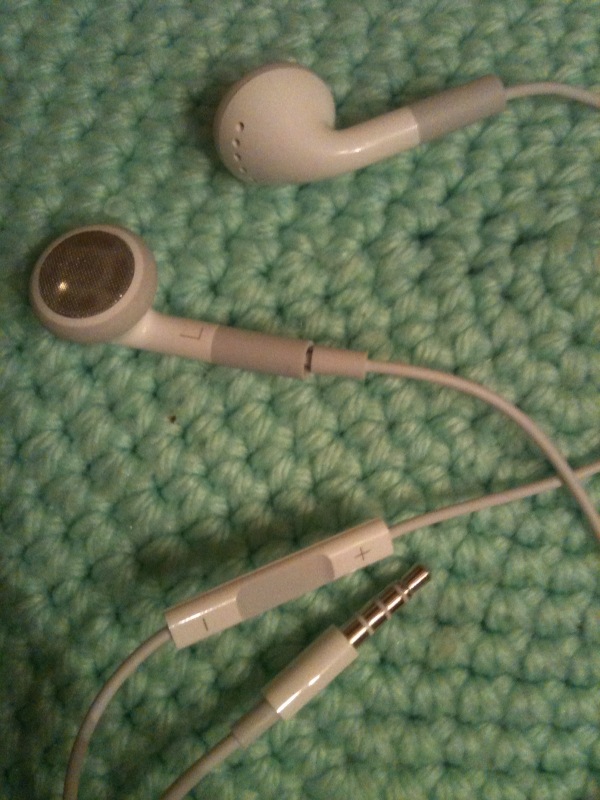
We are also going to try some Skype audio calls. I purchased a set of the iPod earbud headphones with the built in mic. In the photos below, you can see the 3rd marker on the pin connector and the inline microphone.


We have tried some iPod Touch to iPod Touch calls here at home as a test run and everything works great. The grand plan is to use Ping! to set up a call time, then have Skype running at the time of the call. In testing, we discovered that you can stay logged into Skype if you ‘swap out’ to run another app, but in this state you will not be notified of the incoming call.

I am sure she will have a great trip, and I look forward to our iPod based communications. Now, off to check out the wifi availability in the hotels listed on the itinerary.

~ Mark

Reflagging mail in FirstClass mobile

The more I use FirstClass mobile, the more I like it. It is a powerful application, and I am always poking around to explore new features and discover how much of the full desktop client functionality is packed into this app.

One of the features I have always liked about the desktop client is that you can reflag a message from ‘read’ to ‘unread’. I use this technique to track important messages so I don’t lose track of my followups, to do’s and time sensitive items. Initially I could not figure out how to do this in the mobile client. However, I did discover how to do this the other day.

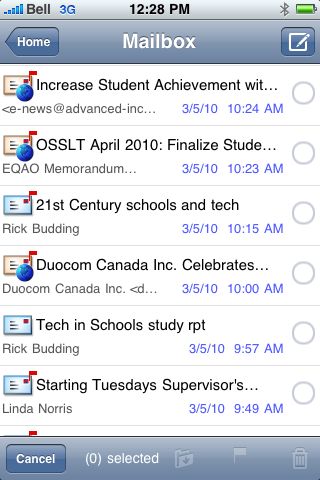
Here is a view from my mailbox. Note the ‘tech in schools study’ message has been read (flag gone).

Now, tap the ‘edit’ button. This will cause the > symbols to change to radio buttons.

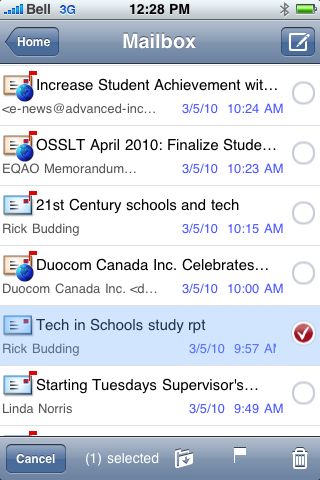
Next, tap the radio buttons to select the message (or multiple messages). A check mark will appear in the radio button to indicate the message has been selected.

Now, tap the flag symbol in the bottom menu bar to restore the mail flag indicator to the message.

Once the flag icon is tapped, the screen returns to the main mailbox view, with the display showing the updated flags.

I hope you enjoy the additional mailbox functionality in the mobile client to help you stay organized.

~ Mark