Category Archives: Tech

Adobe Connect Live

This week I tried my first ‘extended time’ online instructional session with a few administrators in our system using Adobe Connect.  The features of Adobe Connect all worked well in the live setting: status flags, chat window for comments and questions, the notes window for our agenda and screen sharing, which I used to project my browser window to remote users.

The feedback on the method of delivery was very positive. The challenge we experienced was the audio being somewhat choppy. This was not evident on my end as the extra ‘remote view’ computer I had set up to have an idea of what the participants were seeing and hearing yielded good results. Today I spent some time completing some research to learn more about how to improve this aspect of session delivery.  The results of my search provided some good insight into some things to experiment with.

I am going to hold a couple of live audio test session to experiment with mics and audio settings to see if I can make some improvements in the audio delivery.  I am experiementing with 4 different mic setups: a direct plug audio mic/headset, a Microsoft USB LifeChat LX3000 headset,  a USB Snowball and the USB Yeti microphone.  One recommendation was for a Shure 58 mic (requires a pre-amp before it can plug into a computer). I have the equipment to test this too, so may throw this option into the mix. I will share what I learn.

I found the following resources to be helpful:

Adobe Connect Resources
Microphone Options
Microphone Help
Connect 7 Audio Tips
Can they hear you now?
U. Dallas Resources
Penn State – Audio Tips
Online Audio Test

If you have tips to share on this topic, please leave a comment.

~ Mark

iPad wifi tip

In an earlier blog post I commented that the one ‘clunky’ aspect of using the iPad was that the wifi connection to known networks did not happen. With further experimentation, I found that different strategies were needed including:

  • be patient and wait, sometimes the connection issue would sort itself out
  • manually choose the network from the list stored in the wifi settings panel
  • on some occasions, I was asked to reenter my wifi password again
  • complete power off and restart
  • and in a more persistent situation, I went through the ‘forget network’ process and set things up again.

Interestingly, this challenge seems to be mainly with the combination of the iPad and the newest OS. My iPhone and iPod touch do not have this issue.  Yesterday, when this issue surfaced again, and I decided to try something new.  In the settings panel, I choose the Safari tab and used the options available to clear the history, cookies and cache. Immediately following this action, the wifi connection worked fine.

Maybe I am on to something here. I will continue to test this process to see if it yields consistent result.

~ Mark

Traveling with your iPod Touch

My daughter will be spending her March Break traveling with a group from her school. We agreed that this makes an ideal time to try some communications and trip updates via her iPod Touch in wifi mode. I am sure she will post on Facebook via the Facebook mobile app and send emails from her MSN or Hotmail accounts. We also wanted to try extending our communications with 2 additional applications.

Earlier this year, I had tried Ping! with @dougpete and @rebrouse. I bought the ‘pro’ version for 99 cents. The Ping! app gives you text messaging between iPhones (cell or wifi modes) and/or iPod Touch units (wifi mode only). I have found the application to work great. This trip will be a great ‘international’ test.

We are also going to try some Skype audio calls. I purchased a set of the iPod earbud headphones with the built in mic. In the photos below, you can see the 3rd marker on the pin connector and the inline microphone.


We have tried some iPod Touch to iPod Touch calls here at home as a test run and everything works great. The grand plan is to use Ping! to set up a call time, then have Skype running at the time of the call. In testing, we discovered that you can stay logged into Skype if you ‘swap out’ to run another app, but in this state you will not be notified of the incoming call.

I am sure she will have a great trip, and I look forward to our iPod based communications. Now, off to check out the wifi availability in the hotels listed on the itinerary.

~ Mark

Reflagging mail in FirstClass mobile

The more I use FirstClass mobile, the more I like it. It is a powerful application, and I am always poking around to explore new features and discover how much of the full desktop client functionality is packed into this app.

One of the features I have always liked about the desktop client is that you can reflag a message from ‘read’ to ‘unread’. I use this technique to track important messages so I don’t lose track of my followups, to do’s and time sensitive items. Initially I could not figure out how to do this in the mobile client. However, I did discover how to do this the other day.

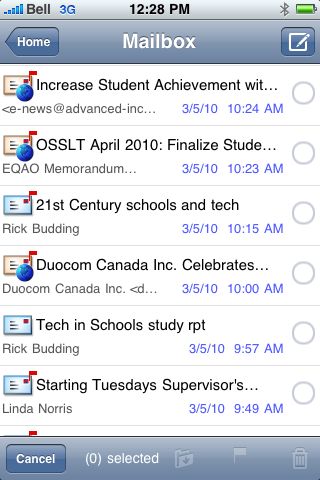
Here is a view from my mailbox. Note the ‘tech in schools study’ message has been read (flag gone).

Now, tap the ‘edit’ button. This will cause the > symbols to change to radio buttons.

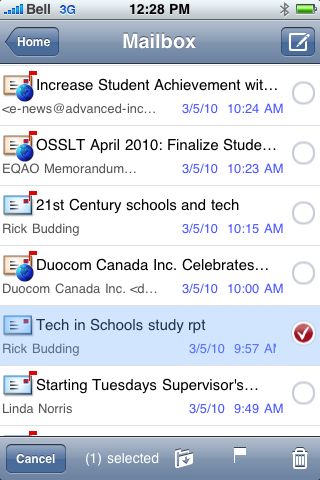
Next, tap the radio buttons to select the message (or multiple messages). A check mark will appear in the radio button to indicate the message has been selected.

Now, tap the flag symbol in the bottom menu bar to restore the mail flag indicator to the message.

Once the flag icon is tapped, the screen returns to the main mailbox view, with the display showing the updated flags.

I hope you enjoy the additional mailbox functionality in the mobile client to help you stay organized.

~ Mark

Tethering with your iPhone

Have you ever needed to access the internet with your laptop when there was no suitable wifi connection?

One solution is to use your iPhone as a wireless modem. Using a smartphone as a wireless modem is called tethering. Setting up this feature with your iPhone is very straight forward.

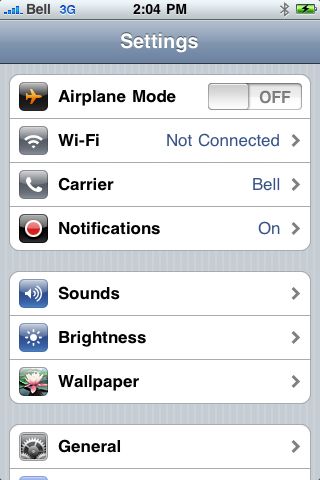
Step 1: open the settings menu

Step 2: select ‘general‘ from the settings menu

Step 3: Select ‘network‘ from the general menu

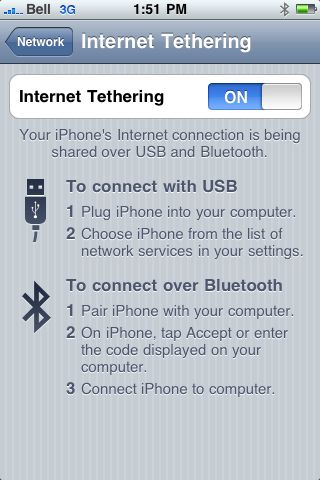
Step 4: Select ‘Internet Tethering‘ from the Network menu.

Step 5: Slide the ‘Internet Tethering‘ button to ‘on’

Now you are ready to connect your iPhone with ‘modem mode’ enabled. You have options to connect with USB or bluetooth.

USB  connection mode: The first time you connect the iPhone in this mode, iTunes will load the necessary drivers and you are ready to go.

Bluetooth connection mode: Before you can connect in bluetooth mode, bluetooth must on active (on) and the iPhone must be paired with the computer in the same manner as you would pair a bluetooth headset. (refer to system documentation for this step)

I have found tethering to work great. If fact, this blog post was written using a tethered internet connection via my iPhone.

Note: Please review your data plan limits and applicable data charge rates before actively using this connection method. You certainly don’t want any surprises on your monthly bill.

Stay connected 🙂

~ Mark

Facebook screen effect

Very curious!

Step 1: Log into Facebook

Step 2: press the following key sequence (one at a time):

up arrow, up arrow, down arrow down arrow, left arrow, right arrow, left arrow, right arrow, b, a, <Enter>

Step 3:

In Windows, right click on the screen to open the options window, then click away from the options window to close it

In OSX, control click on the screen to open the options window, then click away from the options window to close it

Step 4: Now when you press up or down arrow, or click the pointer a set of coloured circles will appear on the screen – weird.

Step 5: Simply log out of Facebook to cancel this effect.

Thanks to my daughter for sharing this strange find with me. You never know what you will learn.

~ Mark


iPhone: tech tip for FirstClass mobile client

I have been using the FirstClass client software on my iPod touch for a little while now. The software is very functional and easy to use for the most part. Setting up the calendar was clunky – not obvious, needed research and makes you ask why???

Activating the calendar requires a couple of steps.

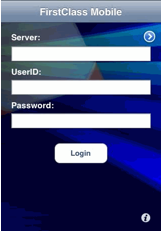
1. Select the ‘i’ on the lower right corner of the main screen to access the settings options.

2. Tap the version number 3 times. The ‘alarm on’ message will appear indicating that calendars and contacts are now visible on the mobile client.


Last week I upgraded my old cell phone to an iPhone. The transition between devices worked well – kept my same family phone plan, added a data package, transferred the contact list from the phone and presto – ready for action with the iPhone.

I synced the iPhone to the same laptop as I sync my iPod Touch to. A separate profile was created and off I went. After a little use, I noticed that the number of available screens within FirstClass was not the same between the devices. Further checking showed that the number of icons available differed as well. Hmmm.

A closer comparison showed that the calendar feature was not active in the client setup synced over to my iPhone and the version number was not there to tap and activate the calendar feature. I deleted the installation, downloaded a fresh copy over the internet and went through the configuration settings again. Now the iPod Touch and iPhone versions are functioning the same and  everything is humming along as I expected.

~ Mark

What’s in a Digital Footprint

As we spend more and more time online, one leaves a digital footprint – digital connections to our name which are part of your online presence. 

Personas is a component of the metropathologies, currently on display at the MIT museum by the Social Media Group. It uses sophisticated natural language processing and the Internet to create a data portrait of one’s aggregated online personaliy. In effect, Personas shows you how the Internet sees you.

Here’s how it works:  You enter your name, first and last only, no middle initials, titles etc. and Personas will dig through the Internet to search for information and attempts to characterize the person by fitting the information against a predetermined set of categories that an algorithmic process created from the total data set found. Each step of the multi-stage process is visualized. The final result is the representation of the seemingly authoritative personal ‘online’ profile (based on the data set).

Personas is a great example of data mining to build profiles from extensive quantities of information. As amazing as this process is, it is also an example showing inconsistencies and inadvertent errors that occur, mainly due to the lack of ability to separate data from multiple owners of the same name. In other words, if I run the process using ‘Mark Carbone’ the final profile presented will be based on the collective data for all of the  people with the name ‘Mark Carbone’, not just me. 

The algorithm fits the collected data against 23 categories, so it’s fairly comprehensive.  The categories include one called ‘illegal’ and I would bet that this would make many of us squirm a little …  I road tested a few names, including my own and this category exists for all the names I tested. None the less, this is a great example a powerful data mining tool.

As an example the representation of ‘Mark Carbone’ looks like

 personas_example


This is a very interesting technology. Click here to try  your name.  I am sure you will enjoy checking out Personas.  Have fun with the profiler.

~ Mark

iPod Adventure

What not to do with your iPod …. the adventure begins.

You may have followed my earlier posts about setting up my MacBook Pro to run multiple operating systems. I finally landed on using VMWare to allow my computer to run Windows Vista, Windows XP and Linux and have been merrily computing along since setting this environment up. 

Two days ago, I was taking advantage of my multi OS setup. On the OSX side, I was charging my iPod Touch and downloading updates from iTunes. On the multitasking side, I was running Windows XP, setting up Band in a Box and Powertracks for some work at CATC By the Water (see yesterday’s post)

Things were zipping along on all fronts when an unexpected adventure started. When the iTunes download completed, my iTouch ‘woke up’ from its peaceful charging state and iTunes initiated the software installation process. At the same time, Windows XP initiated its ‘found new hardware’ process since I had not used my iTouch with XP before. In effect both operating systems, OSX and XP, started reading and writing information to the iPod at the same time. I was presented with new screen on my iPod that I had not seen before (not good) and iTunes was prompting me to reset the iPod’s state to factory defaults. 

The bottom line: this simultaneous dual access corrupted the data on my iTouch. Now I had an opportunity to learn about the reset and restore processes. Fortunately for me, this three step process worked flawlessly: 

1. Restore iPod to factory default settings (like a new out ‘of the box’ iPod) to reset the iPod operating system

2. Choose the restore from iTunes library option (recovers music, videos, podcasts etc.)

3. Resync updates and prior purchases against the iTunes store records.

After about an hour, I had my iTouch fully operational and in the state before I started my adventure. The only manually steps I needed to complete were resetting my security password and reentering my WIFI network settings (access keys). Hats off to the Apple developers for having a clean and reliable process for for restoring iPods. 

Back in business, and multitasking with a little more knowledge 🙂

~ Mark

Virtualizing with OSX

I started down the path of virtualizing operating systems on my MacBook Pro with two interests in mind. First, how can I more effectively test out software, configurations etc. with a more streamlined approach, less gear (did I really say that?) and more mobility. Secondly, figuring out the best way to set up a laptop for my daughter (see earlier post).

My initial work was with Parallels 4.0. Based on my experience, it is certainly fair to say that I only achieved a moderate level of success (see earlier post). I had good success with Ubuntu Linux desktop and netbook versions, but to date, I have not achieved the results I needs in the Windows environment. Keeping my original goals in tact, it was time to change directions. I purchased a copy of VMWare Fusion to work with.

Based on the information posted on each vendor’s website, it was really difficult to make an initial selection. Each vendor predictably promotes the virtues of their own package and states their benefits relative to competing products. I was initially drawn towards Parallels based on performance stats. My decision to purchase VMWare Fusion turned out to be a good move.

An online purchase, download and install had me up and running quickly. In one days work, I had two major successes. First, I purchased a new copy of Windows Vista Ultimate, followed the VMWare new install process without any hitches. Vista loaded and ran fine, downloaded and installed the necessary patches and updates and I was operational – perfect!

I was interested in the product’s ability to import other virtualized systems and decided to give this a try. I was able able to import my ‘disabled’ XP OS from Parallels in fairly quick order. Best of all, VMWare Fusion picked up where Parallels got stuck and allowed me to download and install all of the necessary service packs and security patches. At this point, my XP OS is operational. I have a little more work to do with USB drivers – almost there.

Based on my personal experience, I would certainly recommend VMWare Fusion as an excellent product that delivers as advertised. I do plan to learn more about some of the advanced features as well.

Off to spend time in my newly virtualized space:-)

~ Mark